顯示具有 C# 標籤的文章。 顯示所有文章

2015年7月28日 星期二

[C#] Android, iOS App icon產生器

當我們開發Android,iOS的App時,需要製作App的icon,
比較麻煩是,我們需要不同解析度的icon,
網路上有許多免費的網站可以幫忙產生不同的解析度,
不過,有的網站需要申請帳號,
有的網站處理速度很慢,

所以,只好自己用C#寫一個來用,
我想可能很多人都有這樣的需求,
所以就分享出來,
下載網址如下:

建議先製作一個1024x1024大小的icon,
然後丟到generateAppIcon去產生不同的解析度,
Launch Images是app還沒開始前會先載入的畫面,
很多人會放公司的logo之類的,
它的大小最大是1242x2208, 1536x2048等等,
最好是製作一個高解析的圖當成原圖,

附帶一提,
很多App icon都會有圓角的設計,
Android,你可以設計自己想要的圓角,
它會按照你產生的icon來顯示,

iOS,系統會自己截取你的icon來產生圓角,
而且它的圓角也可能因為不同版本會改變,
除非你的icon和圓角半徑有關,
不然,建議你可以產生一個沒有圓角的icon,
讓系統自己來產生圓角

[C#] 圖片檔案載入PictureBox 控制項時,影像檔案會被鎖住?

我們常常會利用PictureBox來載入影像檔案,
例如以下的用法:
try
{
 var srcImage = Image.FromFile("test.jpg");
 myPictureBox.Image = srcImage;
}
catch (System.OutOfMemoryException)
{
 MessageBox.Show("Invalid picture format.");
}
不過,你會發現此時你無法再對這個做移動或者更名等動作,
因為這個檔案已經被鎖住了,

如果我們不希望它被鎖住呢?
我們可以藉用FileStream來解決,如下:
try
{
 FileStream stream = new FileStream(openFileDialog1.FileName, FileMode.Open);
 var srcImage = Image.FromStream(stream);
 stream.Close();
 myPictureBox.Image = srcImage;
}
catch (System.ArgumentException)
{
 MessageBox.Show("Invalid picture format.");
}

2015年3月12日 星期四

[C#] 如何將程式縮小到右下角

當我們想要將程式縮小到右下角(minimized to tray),類似常駐程式一般,
此時我們可利用工具箱裡的"NotifyIcon"來幫忙,
縮小後,我們可能還需要將程式還原,所以我們還需要用到"ContextMenuStrip"這個工具,

首先,拉一個 "ContextMenuStrip"工具到你的視窗,在裡面我們可以新增幾個menu items,
這些items就是當程式縮小到右小角後,在程式的icon上按滑鼠右鍵時會跳出的選項,
假設我們增加了"Open"和"Quit"二個選項,


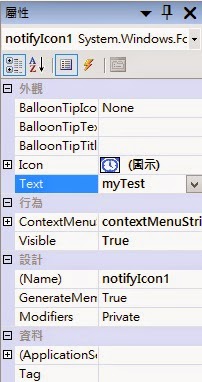
再來,拉一個"NotifyIcon"工具到你的視窗,開始編輯它的屬性,
其中,Icon就是縮小時,使用者會看到的圖示,
Text就是使用者滑鼠移到圖示上面時,會跳出的文字,
在ContextMenu上點一下,即可選擇我們剛剛加入的ContextMenuStrip工具名稱,

接下來就是程式部份:
private void frmMain_Resize(object sender, EventArgs e)
        {
            if (this.WindowState == FormWindowState.Minimized)
            {
                this.notifyIcon1.Visible = true;
                this.Hide();
            }
            else
            {
                this.notifyIcon1.Visible = false;
            } 
        }

        private void openToolStripMenuItem_Click(object sender, EventArgs e)
        {
            this.Show();
            this.WindowState = FormWindowState.Normal; 
        }

        private void quitToolStripMenuItem_Click(object sender, EventArgs e)
        {            
            this.Close();            
        }
frmMain_Resize()是主視窗Resize這個Event的處理函數,
openToolStripMenuItem_Click()是ContextMenuStrip1的"Open"選項Click Event的處理函數, quitToolStripMenuItem_Click()是ContextMenuStrip1的"Quit"選項Click Event的處理函數, 有時候,我們發現有些程式你把它關掉時,它不會直接關掉, 會告訴你它將縮小到右下角,怎麼做到這樣的效果呢?
 private void frmMain_FormClosing(object sender, FormClosingEventArgs e)
        {            
            DialogResult result;
            result = MessageBox.Show("Yes to minimize, No to quit directly, Cancel to return", "Minimize to tray?", MessageBoxButtons.YesNoCancel);
            if (result == DialogResult.Yes)
            {
                this.WindowState = FormWindowState.Minimized;
                e.Cancel = true;
            }            
            else if (result == DialogResult.Cancel)
            {                
                e.Cancel = true;
            }
            
        }
frmMain_FormClosing()是主視窗FormClosing這個Event的處理函數, e.Cancel = true;表示Cancel Closing這個動作

2015年3月11日 星期三

[C#] 如何避免程式被開啓二次

如果程式已經在執行了,使用者又按了一次執行檔,
我們希望能直接跳出已在執行的程式即可,而非開了二個程式,
此時,我們只要在program.cs裡先做檢查就行了
static void Main()
{           
    if (frmMain.AlreadyRunning())
    {
      return;
    }

    Application.EnableVisualStyles();
    Application.SetCompatibleTextRenderingDefault(false);
    Application.Run(new frmMain());
}
其中,AlreadyRunning()是宣告frmMain.cs裡
public static bool AlreadyRunning()
        {
            /*
            const int SW_HIDE = 0;
            const int SW_SHOWNORMAL = 1;
            const int SW_SHOWMINIMIZED = 2;
            const int SW_SHOWMAXIMIZED = 3;
            const int SW_SHOWNOACTIVATE = 4;
            const int SW_RESTORE = 9;
            const int SW_SHOWDEFAULT = 10;
            */
            const int swRestore = 9;

            var me = Process.GetCurrentProcess();
            var arrProcesses = Process.GetProcessesByName(me.ProcessName);

            if (arrProcesses.Length > 1)
            {
                for (var i = 0; i < arrProcesses.Length; i++)
                {
                    if (arrProcesses[i].Id != me.Id)
                    {
                        // get the window handle
                        IntPtr hWnd = arrProcesses[i].MainWindowHandle;

                        // if iconic, we need to restore the window
                        //if (IsIconic(hWnd))
                        {
                            MessageBox.Show("Already running", "", MessageBoxButtons.OK);
                            ShowWindowAsync(hWnd, swRestore);                            
                        }

                        // bring it to the foreground
                        SetForegroundWindow(hWnd);
                        
                        break;
                    }
                }
                return true;
            }

            return false;
        }

[C#] 如何取得和設定系統時間

微軟的MSDN官方網站,有說明如何取得系統時間,方法如下:
[DllImport("coredll.dll")]
private extern static void GetSystemTime(ref SYSTEMTIME lpSystemTime);

[DllImport("coredll.dll")]
private extern static uint SetSystemTime(ref SYSTEMTIME lpSystemTime);

private struct SYSTEMTIME 
{
    public ushort wYear;
    public ushort wMonth; 
    public ushort wDayOfWeek; 
    public ushort wDay; 
    public ushort wHour; 
    public ushort wMinute; 
    public ushort wSecond; 
    public ushort wMilliseconds; 
}

private void GetTime()
{
    // Call the native GetSystemTime method
    // with the defined structure.
    SYSTEMTIME stime = new SYSTEMTIME();
    GetSystemTime(ref stime);

    // Show the current time.           
    MessageBox.Show("Current Time: "  + 
        stime.wHour.ToString() + ":"
        + stime.wMinute.ToString());
}
private void SetTime()
{
    // Call the native GetSystemTime method
    // with the defined structure.
    SYSTEMTIME systime = new SYSTEMTIME();
    GetSystemTime(ref systime);

    // Set the system clock ahead one hour.
    systime.wHour = (ushort)(systime.wHour + 1 % 24);
    SetSystemTime(ref systime);
    MessageBox.Show("New time: " + systime.wHour.ToString() + ":"
        + systime.wMinute.ToString());
}
可是呢?執行時,卻會遇到"無法載入 DLL 'coredll.dll': 找不到指定的模組"的錯誤訊息, 後來是改成載入"kernel32.dll"就可以了
[DllImport("kernel32.dll")]
private extern static void GetSystemTime(ref SYSTEMTIME lpSystemTime);

[DllImport("kernel32.dll")]
private extern static uint SetSystemTime(ref SYSTEMTIME lpSystemTime);