顯示具有 C# (English version) 標籤的文章。 顯示所有文章

2015年7月28日 星期二

[C#] Android, iOS App icon generator

When we develop Android or iOS App, we need to design the icon the our App as well.
The annoying problem is that we need to have different resolutions of icons.

There have many free website which can help to us to do that.
However, some websites need to have account to start generating.
Some websites may have slow response time.

So...I decide to write a program using C# for such purpose.
At the same time, I think that there may have many people have similar requirement like me.
I would like to share my program as below:

I suggest that you can design a icon with the resolution of 1024x1024.
That you can open it with generateAppIcon and generate files with different resolutions you need.


By the way, we often use rounded corner in our icon.
In Android, you can design your rounded corner.
The system will show the icon as you design.

However, in iOS, the system will generate the rounded corner itself.
The radius of rounded corner may change for different system version.
I would like to suggest that you can design a icon without rounded corner and let the system to generate the rounded corner itself.

[C#] When we use PictureBox to load the picture file,the picture file will be locked?

We often use PictureBox to load the picture file, like below:
try
{
 var srcImage = Image.FromFile("test.jpg");
 myPictureBox.Image = srcImage;
}
catch (System.OutOfMemoryException)
{
 MessageBox.Show("Invalid picture format.");
}
However, you will find that you cannot move or rename this picture file.
That is this picture file is locked.

What if we wish that it will not be locked?
We can solve this problem be using FileStream, as below:
try
{
 FileStream stream = new FileStream(openFileDialog1.FileName, FileMode.Open);
 var srcImage = Image.FromStream(stream);
 stream.Close();
 myPictureBox.Image = srcImage;
}
catch (System.ArgumentException)
{
 MessageBox.Show("Invalid picture format.");
}

2015年3月31日 星期二

[C#] How to minimized to tray?

When we want to our program to minimized to tray, like the resident program,
we can use the "NotifyIcon" control in the toolbox.
Besides, we also need the tool "ContextMenuStrip" since we may want to restore our program after it has been minimized.

First, add one "ContextMenuStrip" control to your form.
We just add few menu items in it, say "Open" and "Quit" in our demo.
These items will be shown on the popup menu which is mouse right-click menu of our program when it is minimized to tray.


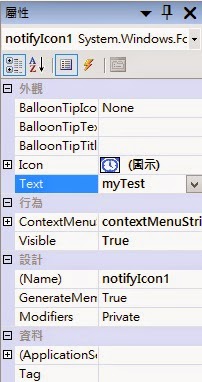
Then, add one "NotifyIcon" control to you form and edit its property.
The item Icon is the icon you will see when the program is in the tray.
Item Text is the popup message when th mouse move over it.
Click on the item ContextMenu, we can select the name of ContextMenuStrip we just added.

Now are the codes:
private void frmMain_Resize(object sender, EventArgs e)
        {
            if (this.WindowState == FormWindowState.Minimized)
            {
                this.notifyIcon1.Visible = true;
                this.Hide();
            }
            else
            {
                this.notifyIcon1.Visible = false;
            } 
        }

        private void openToolStripMenuItem_Click(object sender, EventArgs e)
        {
            this.Show();
            this.WindowState = FormWindowState.Normal; 
        }

        private void quitToolStripMenuItem_Click(object sender, EventArgs e)
        {            
            this.Close();            
        }
frmMain_Resize() is the Resize event function of the form.
openToolStripMenuItem_Click() is the Click Event function of "Open " item in ContextMenuStrip1.
quitToolStripMenuItem_Click() is the Click Event function of "Quit" item in ContextMenuStrip1.
That is.

Sometimes, we found that when we close some program, it was not terminated directly.
It would tell you that it is going to minimized to tray.
How did it do that?
 private void frmMain_FormClosing(object sender, FormClosingEventArgs e)
        {            
            DialogResult result;
            result = MessageBox.Show("Yes to minimize, No to quit directly, Cancel to return", "Minimize to tray?", MessageBoxButtons.YesNoCancel);
            if (result == DialogResult.Yes)
            {
                this.WindowState = FormWindowState.Minimized;
                e.Cancel = true;
            }            
            else if (result == DialogResult.Cancel)
            {                
                e.Cancel = true;
            }
            
        }
frmMain_FormClosing() is the FormClosing event function.
e.Cancel = true; means that the action of Closing is cancaled.

[C#] How to prevent our program from being executed twice?

When our program is running, and then the user press the execution file again,
we wish that it will show up the window of program being executed instead of forking a new program. 
To achieve that, we just need to check the status in program.cs:
static void Main(){           
    if (frmMain.AlreadyRunning())
    {
      return;
    }

    Application.EnableVisualStyles();
    Application.SetCompatibleTextRenderingDefault(false);
    Application.Run(new frmMain());
}
The  function AlreadyRunning() is declared in frmMain.cs.
public static bool AlreadyRunning()
        {
            /*
            const int SW_HIDE = 0;
            const int SW_SHOWNORMAL = 1;
            const int SW_SHOWMINIMIZED = 2;
            const int SW_SHOWMAXIMIZED = 3;
            const int SW_SHOWNOACTIVATE = 4;
            const int SW_RESTORE = 9;
            const int SW_SHOWDEFAULT = 10;
            */
            const int swRestore = 9;

            var me = Process.GetCurrentProcess();
            var arrProcesses = Process.GetProcessesByName(me.ProcessName);

            if (arrProcesses.Length > 1)
            {
                for (var i = 0; i < arrProcesses.Length; i++)
                {
                    if (arrProcesses[i].Id != me.Id)
                    {
                        // get the window handle
                        IntPtr hWnd = arrProcesses[i].MainWindowHandle;

                        // if iconic, we need to restore the window
                        //if (IsIconic(hWnd))
                        {
                            MessageBox.Show("Already running", "", MessageBoxButtons.OK);
                            ShowWindowAsync(hWnd, swRestore);                            
                        }

                        // bring it to the foreground
                        SetForegroundWindow(hWnd);
                        
                        break;
                    }
                }
                return true;
            }

            return false;
        }

[C#] How to get and set System Time?

According to the formal website of Microsoft MSDN, it depicts how to get and set System Time as shown below:
[DllImport("coredll.dll")]
private extern static void GetSystemTime(ref SYSTEMTIME lpSystemTime);

[DllImport("coredll.dll")]
private extern static uint SetSystemTime(ref SYSTEMTIME lpSystemTime);

private struct SYSTEMTIME 
{
    public ushort wYear;
    public ushort wMonth; 
    public ushort wDayOfWeek; 
    public ushort wDay; 
    public ushort wHour; 
    public ushort wMinute; 
    public ushort wSecond; 
    public ushort wMilliseconds; 
}

private void GetTime()
{
    // Call the native GetSystemTime method
    // with the defined structure.
    SYSTEMTIME stime = new SYSTEMTIME();
    GetSystemTime(ref stime);

    // Show the current time.           
    MessageBox.Show("Current Time: "  + 
        stime.wHour.ToString() + ":"
        + stime.wMinute.ToString());
}
private void SetTime()
{
    // Call the native GetSystemTime method
    // with the defined structure.
    SYSTEMTIME systime = new SYSTEMTIME();
    GetSystemTime(ref systime);

    // Set the system clock ahead one hour.
    systime.wHour = (ushort)(systime.wHour + 1 % 24);
    SetSystemTime(ref systime);
    MessageBox.Show("New time: " + systime.wHour.ToString() + ":"
        + systime.wMinute.ToString());
}
However, when we execute it, we will encounter the error message "Unable to load DLL 'coredll.dll': The specified module could not be found".

To fix it, just import "kernel32.dll" instead of "coredll.dll", as shown below:
[DllImport("kernel32.dll")]
private extern static void GetSystemTime(ref SYSTEMTIME lpSystemTime);

[DllImport("kernel32.dll")]
private extern static uint SetSystemTime(ref SYSTEMTIME lpSystemTime);